Seerr guide
Check on your requests
After you request a movie or show, the server owner approves it, then it downloads. You can see where each request is on the Seerr website.
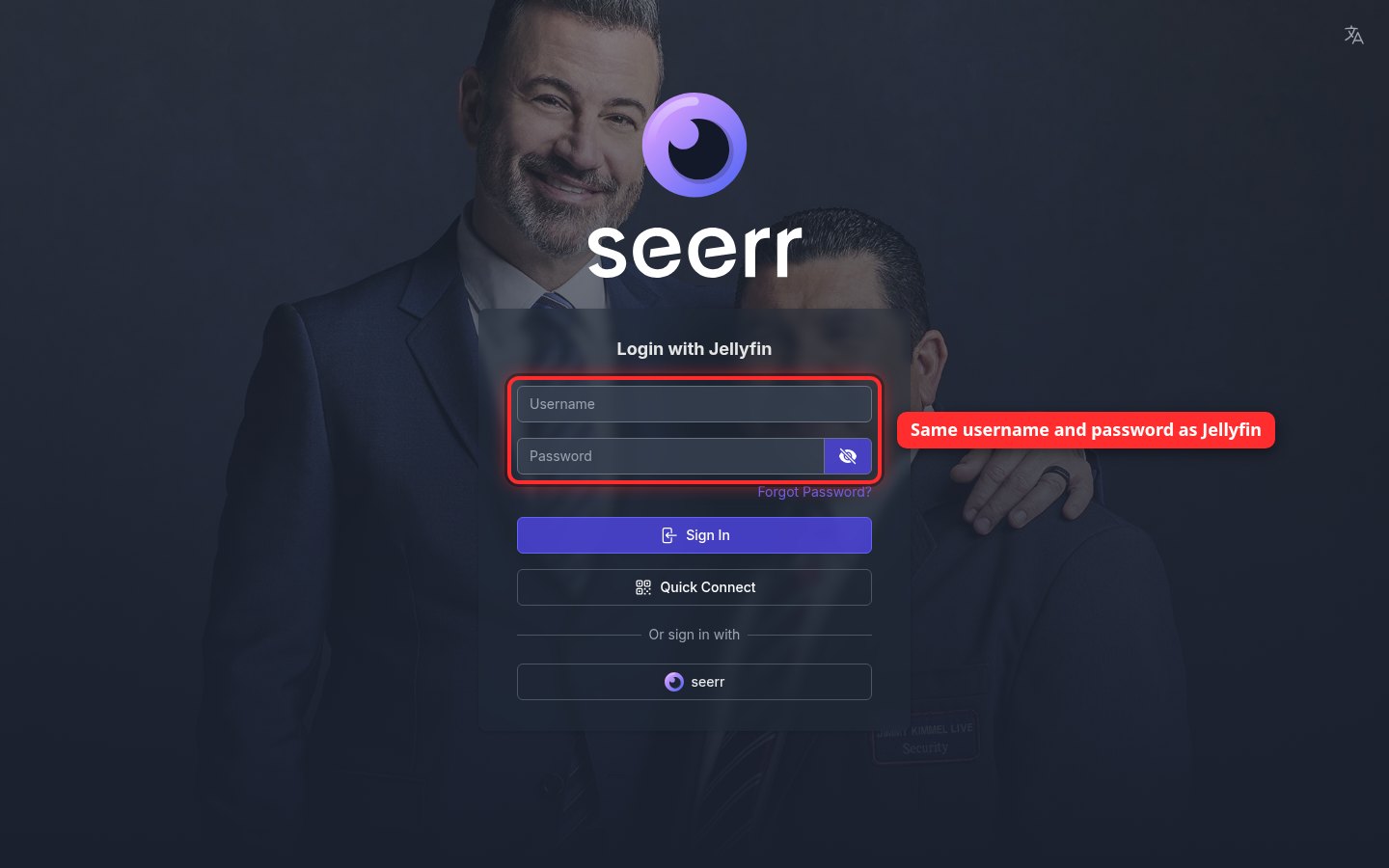
1Sign in to Seerr
Go to seerr.xpvhub.com. Sign in with the same username and password you use for Jellyfin, then click Sign In.
2Open your requests
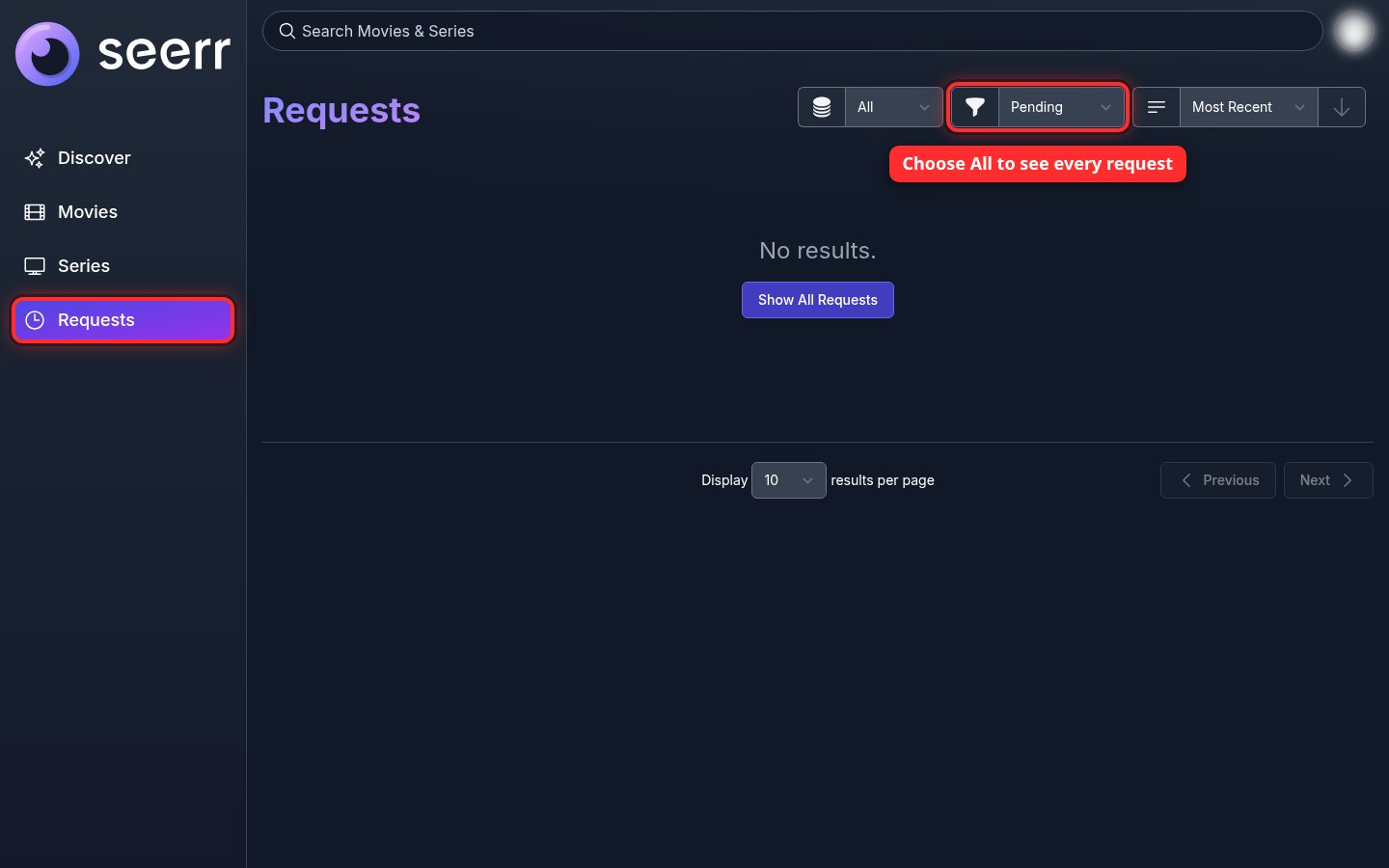
Click Requests on the left. The list starts on Pending. Change it to All to see everything you've asked for.
What the labels mean
- Pending: waiting for the server owner to approve it.
- Approved or Processing: it's on its way.
- Available: it's ready. Find it in Jellyfin.
- Declined: the server owner said no this time.
You can also search and request from Seerr itself, using the search bar at the top. To request from inside Jellyfin, see How to request a movie or TV show.