Jellyfin guide
Make Jellyfin look and sound right
A few settings make watching nicer: pretty backgrounds, your favourite audio language and subtitles that show up when you want them.
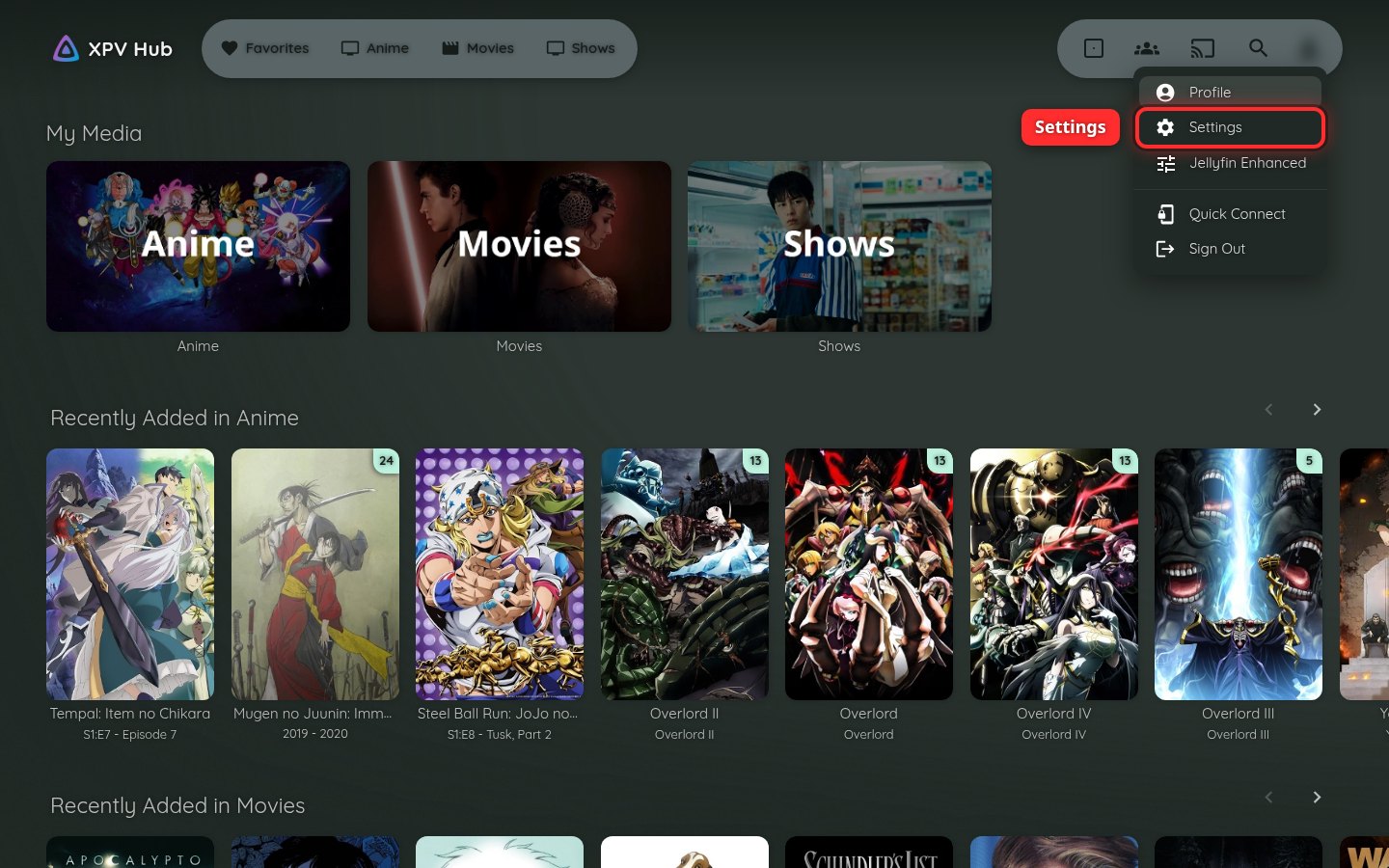
1Open Settings
Click the person icon in the top-right corner, then choose Settings.
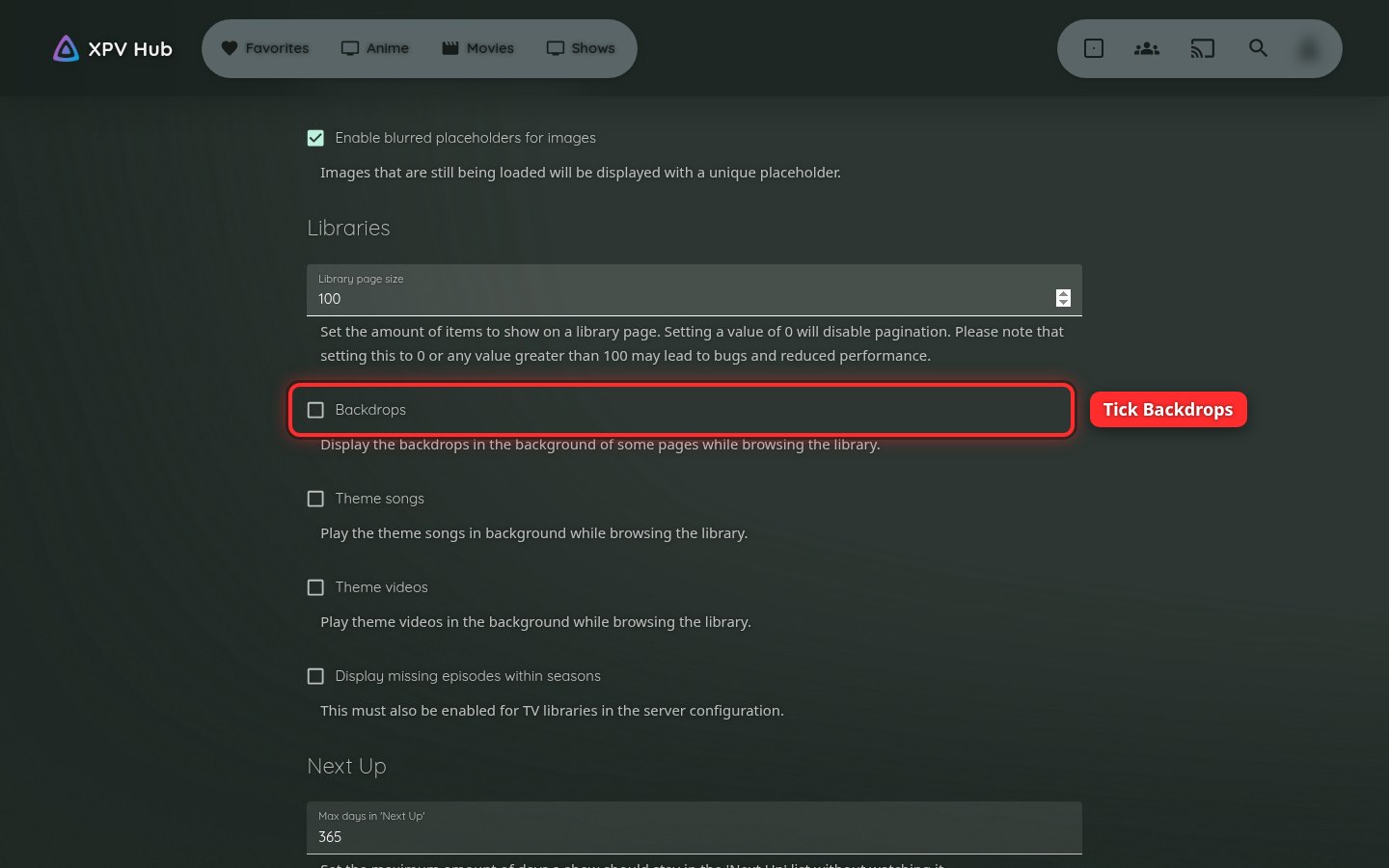
2Turn on backgrounds
Click Display. Scroll down to Libraries and tick Backdrops. Then scroll to the bottom and click Save.
Now movie and show pages fill the screen with artwork. This setting only changes the device you're on, so do it once on each one.
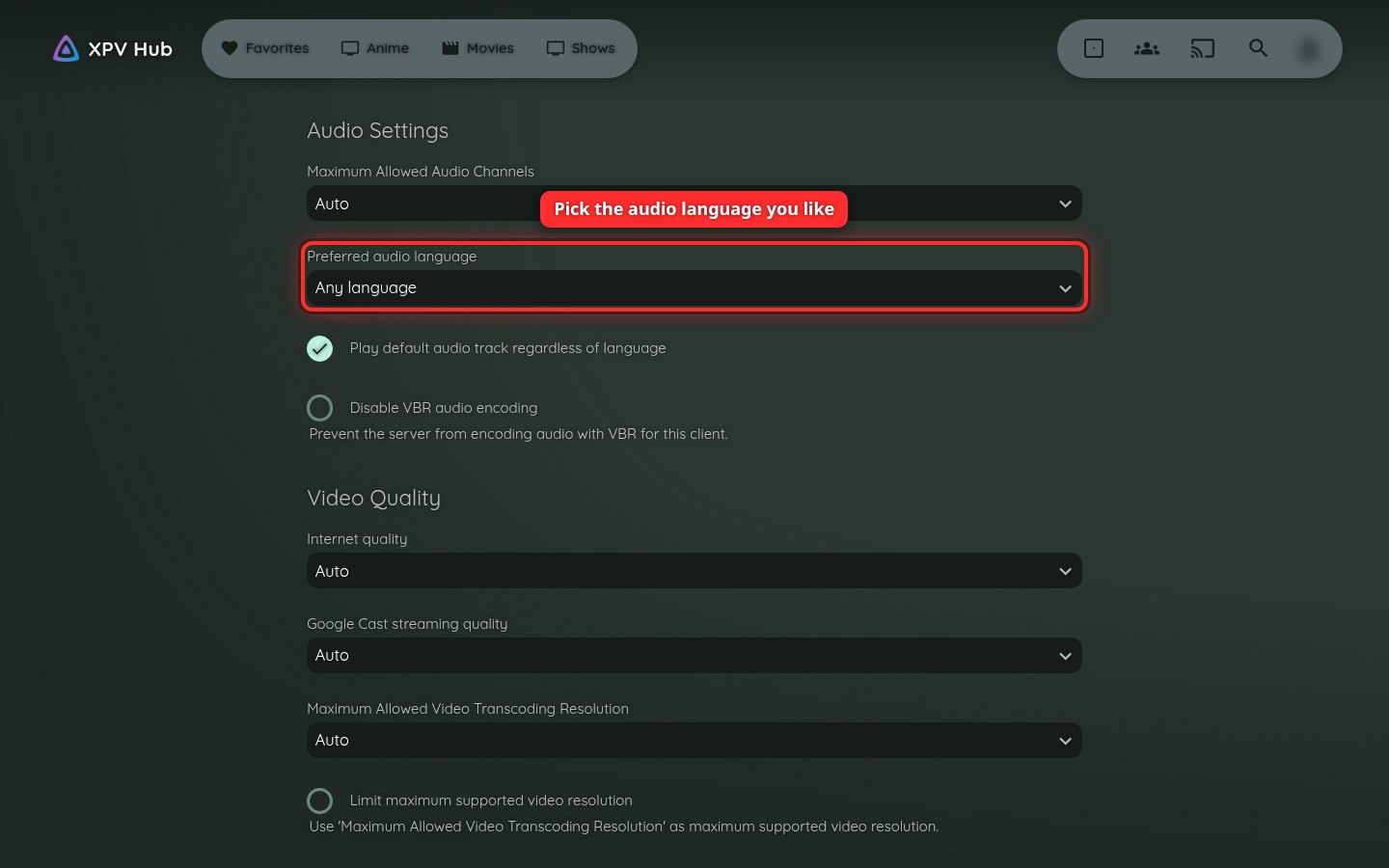
3Pick your audio language
Go back to Settings and click Playback. Under Preferred audio language, choose the language you want to hear. For example, pick Japanese to hear anime in its original language. Click Save at the bottom.
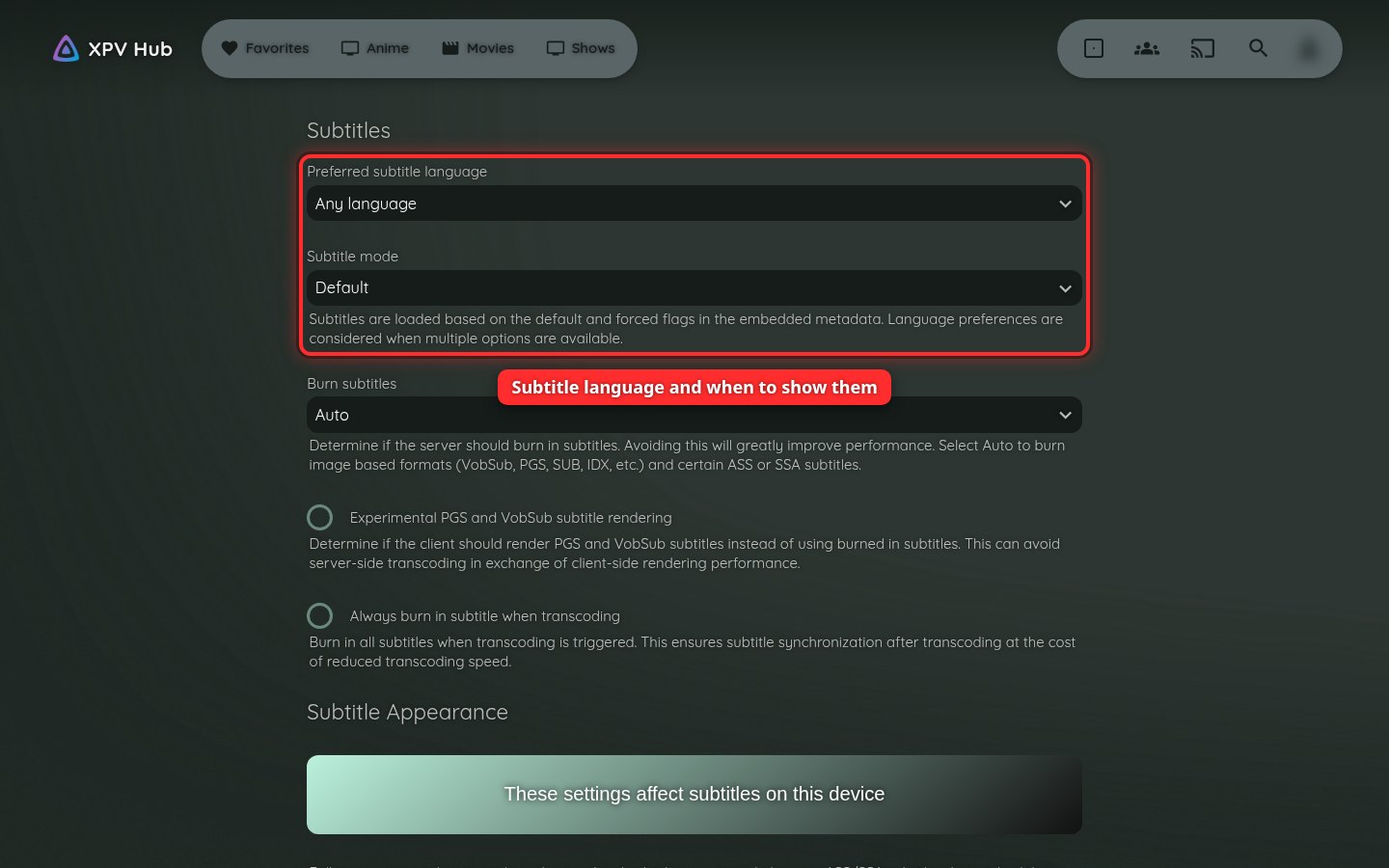
4Set up subtitles
Go back to Settings and click Subtitles. Choose your Preferred subtitle language. Then choose a Subtitle mode:
- Always Play shows subtitles every time.
- Smart shows them only when the audio isn't in your language.
- None turns them off.
Click Save at the bottom. Your audio and subtitle choices follow your account to every device.